Update your EMIS 'No Reference Range' default comment setting
Last updated: November 19, 2026
This setting is for EMIS practices with the No Reference Range filter only.
EMIS is currently releasing an update which adds a No Reference Range filter for lab reports. Your practice may not have received this update yet. You can check whether you have this filter by navigating to Workflow Manager > click Lab Reports > click Filter, and 'No Reference Range' will be a filter option for your lab reports.
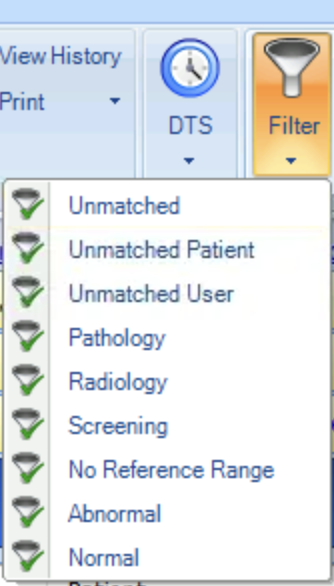
Due to the new 'No Reference Range' filter update within EMIS, practices must update their EMIS settings. This is to ensure that Normal reports that fall under this new filter have a default comment added to the report.
Please note that abnormal reports under the No Reference Range filter will have comments added by GP Automate so these will not be affected.
What you need to do
Click the EMIS button in the top left-hand corner, then click Workflow.
Click Lab reports in the EMIS Workflow window.
Go to Config.
Under the organisation options menu, click Lab reports configuration.
Scroll to No Reference Range (Default), which will be blank.
Click Edit.
Enter your preferred user comment in the blank box.
Click Make it as default comment.
Click OK.
For Normal reports under the Normal filter, this will usually be something like 'Normal - no action' or 'Satisfactory control'. You may wish to add something similar for Normal reports under the No Reference Range filter.
If you do not complete the above steps, the Normal reports under the No Reference Range filter will be filed by GP Automate without a default comment attached.
If you have any questions, please submit a support request.