Managing user roles and access in the Practice Portal
Last updated: October 16, 2026
Practice Owners can add, change and remove users in the Practice Portal. This article explains the roles available and how to manage them.
How access works
Everyone who uses the Practice Portal has a user account and at least one role. A role controls what the person can see and change at your practice. A person can hold more than one role.
Practice roles
There are five practice roles. Choose the one that gives each person the access they need and no more.
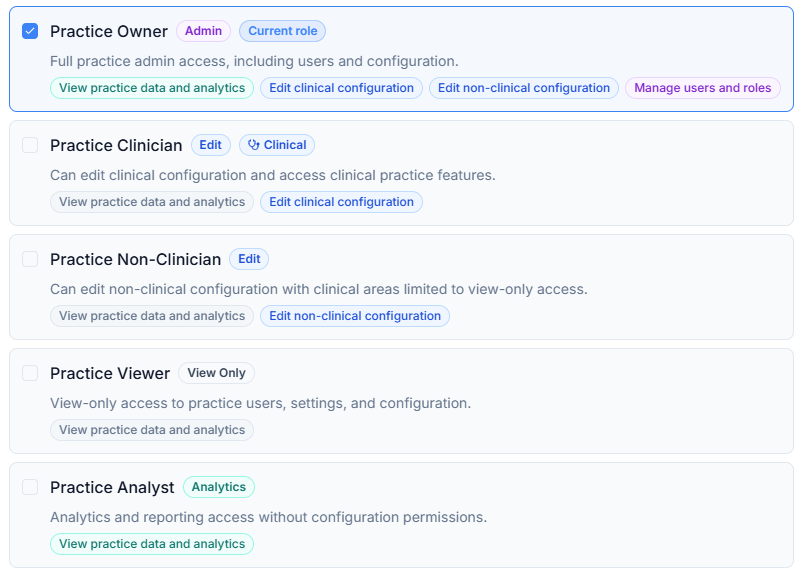
Role | What it allows |
|---|---|
Practice Owner | Full practice admin access, including users and configuration. Can view practice data and analytics, edit clinical and non-clinical configuration, and manage users and roles. Best for practice managers and lead GPs. |
Practice Clinician | Can edit clinical configuration and access clinical practice features. Can view practice data and analytics. Best for clinical staff. |
Practice Non-Clinician | Can edit non-clinical configuration. Clinical areas are view-only. Can view practice data and analytics. Best for administrative and reception staff. |
Practice Viewer | View-only access to practice users, settings and configuration. Can view practice data and analytics. |
Practice Analyst | Analytics and reporting access without configuration permissions. Can view practice data and analytics. |
Who can manage users
Only a Practice Owner can add, change or remove users. If you need access to manage users, ask an existing Practice Owner at your practice.
View your users
Log in to the Practice Portal.
Check the practice shown at the top of the page. Use the practice selector to switch practice if needed.
Select Users & Roles in the left-hand menu.
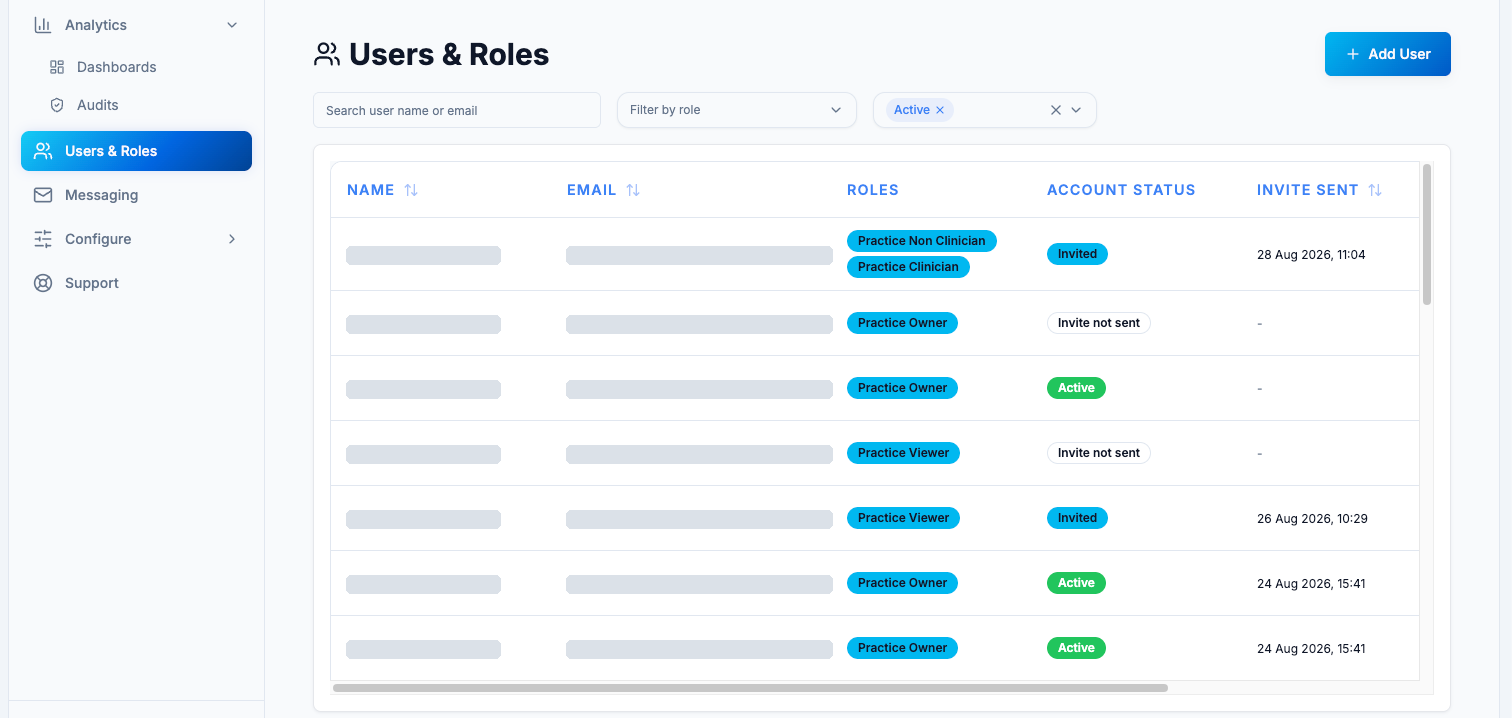
The list shows each user's name, email, roles, account status and the date the invitation was sent. You can search by name or email, and filter by role or account status.
Account status
Status | Meaning |
|---|---|
Invite not sent | The invitation could not be sent. Select the envelope icon in the Actions column to try again. If it still fails, contact support. |
Invited | An invitation has been sent. The user has not yet accepted it. |
Active | The user has accepted the invitation and can log in. |
Actions
Use the icons in the Actions column at the end of each row. If you cannot see the column, scroll the table to the right.
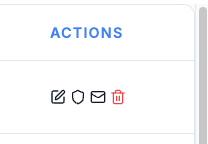
Icon | What it does |
|---|---|
Pencil | Edit the user's name or email address. |
Shield | Manage the user's roles. |
Envelope | Resend the invitation. This only shows for users who are not yet Active. |
Red bin | Delete the user. |
Add a new user
Before you start, confirm the person's Microsoft 365 work email address. This is usually their NHS email. It must be the account they will use to log in.
Go to Users & Roles.
Select Add User (top right).
Enter the First Name and Last Name.
Enter the Email Address.
Choose a Role from the dropdown. A short description of the role appears below it.
Select Create User.
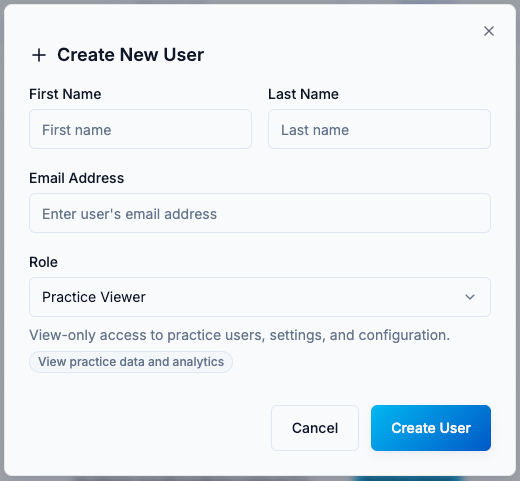
The user appears in the list, and an invitation is sent to their email address. Once they accept it, they can log in and will only see the features their role allows.
If the status shows Invite not sent, or the person says they did not receive the email, select the envelope icon in the Actions column to send it again. If it still fails, contact support.
Edit a user's name or email address
Go to Users & Roles.
Find the user and select the pencil icon in the Actions column.
Update the First Name, Last Name or Email Address.
Select Save Changes.
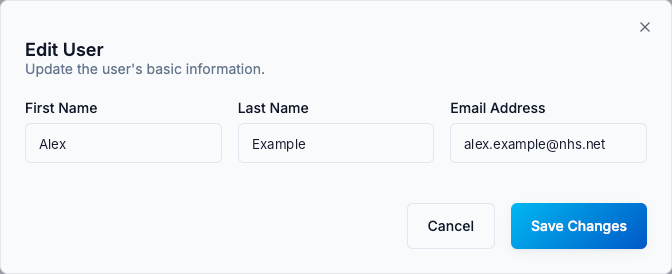
If you change an email address, enter the Microsoft 365 work email the person will use to log in.
Manage a user's roles
Go to Users & Roles.
Find the user and select the shield icon in the Actions column.
Tick a role to give it to the user. Untick a role to remove it.
Select Close when you have finished.
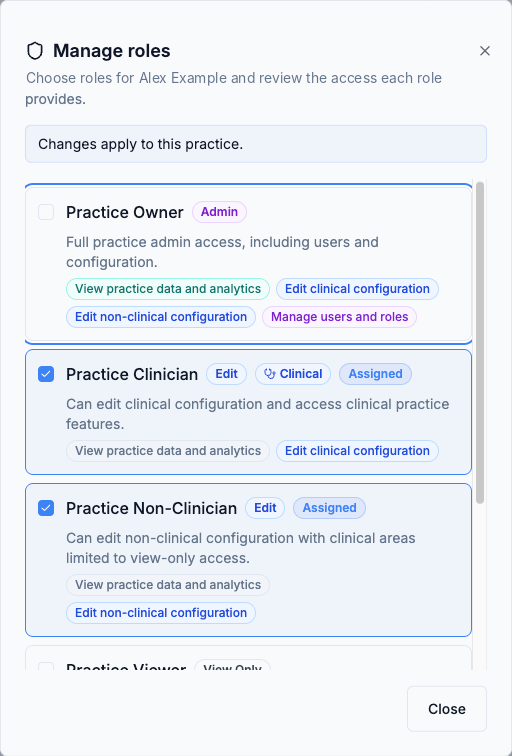
Roles the user already has are ticked and marked Assigned. Each role shows what it allows, so you can check access before you tick it. Changes apply to your practice only. A user can hold more than one role.
Delete a user
Do this when someone leaves and should no longer have access.
Go to Users & Roles.
Find the user and select the red bin icon in the Actions column.
Check the name and email shown are correct.
Type the ID number shown in the box to confirm.
Select Delete User.
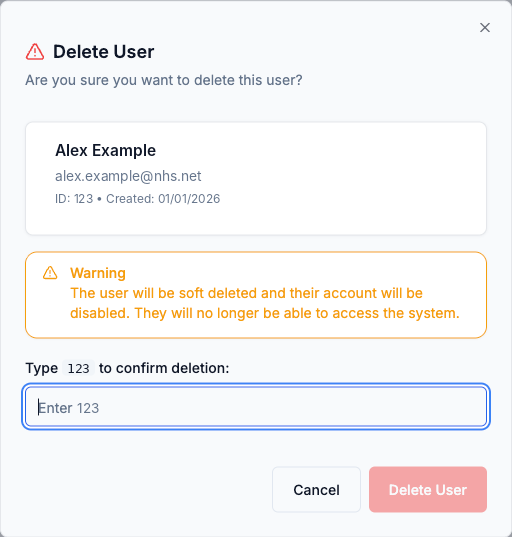
The user is removed and their account is disabled. They can no longer log in. This cannot be undone in the portal. If a user was deleted by mistake, contact support and we will restore them.
Good to know
If someone's Microsoft 365 email changes (for example, after a name change), update it using the pencil icon. You do not need to delete the user and create a new one.
You can assign a role before the person has logged in for the first time. It takes effect automatically at first login.
Each person needs their own user. Please do not share logins.
If you are unsure which role to choose, contact support.