How the Messages inbox with NHS App works
Last updated: October 30, 2026
Messages inbox with NHS app
Overview
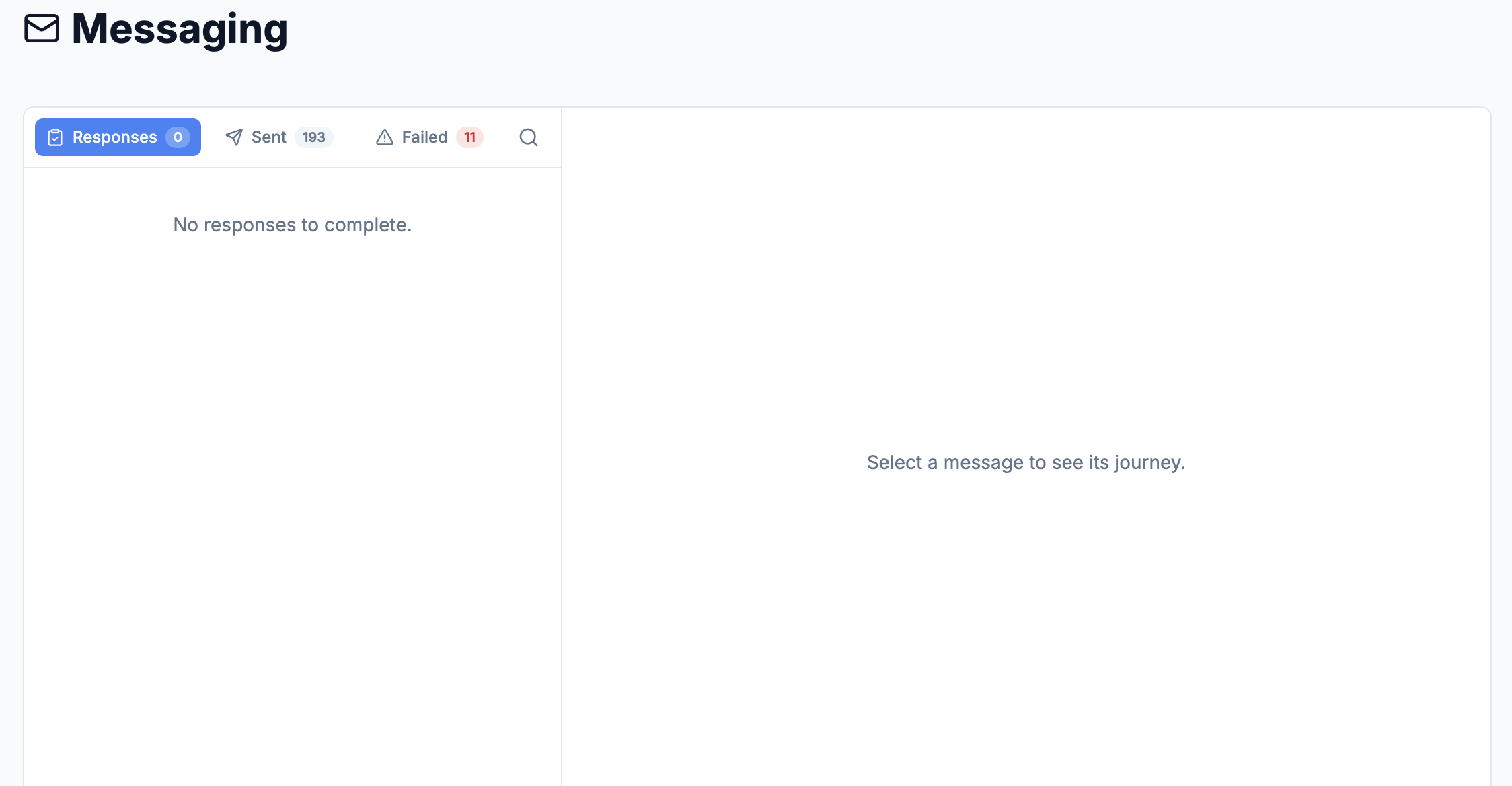
The Messaging Inbox in your GP Automate Practice Portal gives you a clear view of all patient messages sent through our messaging partners.
It provides a complete record of what was sent, when it was sent, which messaging method was used, and whether the message was successfully delivered.
The inbox is divided into three views:
Sent – View messages sent to patients, including delivery statuses and any fallback methods used.
Failed – Identify messages that could not be delivered and require your practice to contact the patient through an alternative method.
Responses – Review patient replies, take the appropriate action, and mark them as complete.
This helps your practice track patient communications and ensure important messages are not missed.
1. Sent – Track Messages and Delivery Status
The Sent view provides a record of patient messages generated by GP Automate.
Select any patient to view their message history, including:
Message content: The exact notification sent to the patient.
Date and time: When the message was sent or attempted.
Messaging channel: Whether the message was sent via NHS App, SMS, or Email.
Delivery status: Whether the message was delivered, attempted, or failed.
Fallback method: Whether an alternative messaging channel was used when the initial method was unsuccessful.
Understanding the Message Journey
Clicking on a message displays its journey, showing each recorded event in chronological order.
For example:
GP Automate generates a notification for the patient.
A message is attempted through the configured messaging channel.
If required, a fallback method such as SMS is used.
The message journey records the outcome and relevant timestamps.
You can select Show journey to expand the delivery history and Hide journey to collapse it.
This provides an audit trail of patient communications, helping your practice understand exactly what notification was sent, when it was sent, and how delivery was attempted.
Please note: The message journey is a read-only record and cannot be edited.
2. Failed – Identify Patients Requiring Alternative Contact
The Failed view displays messages that could not be successfully delivered to patients.
These messages require attention from your practice to ensure the patient receives the intended communication.
What You Can See
For each failed message, you can review:
The patient's details.
The original message content.
The date and time of the failed attempt.
The messaging channel that failed.
The recorded failure and any fallback attempts.
Where all delivery attempts have failed, the inbox highlights that nothing reached the patient.
What Action Should Your Practice Take?
Open the failed message and review the intended communication.
Contact the patient through an alternative method, such as a telephone call or letter.
Record the action taken by selecting the appropriate option:
Called – You have attempted to contact the patient by telephone.
Letter sent – A letter has been sent to the patient.
Contacted – The patient has been contacted through an alternative method.
Completed – The required follow-up has been completed.
Skip – The item does not require further action.
These options help your team track follow-up activity and manage outstanding communications.
Important: A failed message means the intended notification may not have reached the patient. Your practice should review these items and arrange alternative contact where appropriate.
3. Responses – Review and Complete Patient Replies
The Responses view displays replies received from patients in response to messages sent through GP Automate. Currently specifically for National Diabetes Prevention Programme (if configured by practice).
This allows your practice to review patient responses and take any necessary follow-up action.
What You Can See
Selecting a patient response displays:
The original message sent to the patient.
The patient's reply.
The date and time of the response.
Whether the response is awaiting action or has been completed.
How to Manage Patient Responses
Open the Responses view.
Select the patient whose response you want to review.
Read the original message and the patient's reply.
Complete any required follow-up action.
Click Mark complete once the response has been dealt with.
Marking a response as complete removes it from the outstanding responses list, helping your team focus on patients who still require attention.
Completed responses remain recorded in the messaging history for reference.
Frequently Asked Questions
How can I check whether a patient received a message?
Open the Sent view, select the patient, and review the delivery status. You can expand the message journey to see the recorded delivery attempts, timestamps, and any fallback method used.
What happens if the initial messaging method fails?
Where supported and configured, the messaging service may attempt an alternative channel, such as SMS. These attempts are recorded in the message journey so you can see what happened.
Does GP Automate automatically contact patients again when all methods fail?
The Failed view identifies messages that have not been successfully delivered. Your practice is responsible for reviewing these and arranging alternative contact where necessary.
What happens when I mark a patient response as complete?
The response is marked as dealt with and removed from the outstanding responses list. This helps prevent your team from repeatedly reviewing the same response.
Can I edit previously sent messages?
No. The messaging history is a read-only record of communications and delivery events.
Summary
The Messaging Inbox helps your practice manage patient communications in one place.
Sent: Understand what was sent, when, and through which channel.
Failed: Identify unsuccessful communications and record alternative contact actions.
Responses: Review patient replies and mark them as complete once actioned.
By regularly reviewing the Failed and Responses views, your team can ensure outstanding communications are followed up and patients receive the attention they need.